The file list
The «Dosyalar» (files) tab in the menu opens the «Operasyon dosyaları» (operation files) list; the tab depends on the «Operasyonlar» (operations) module. Each card in the list shows the file number, the badge of the open option and how many times it has been extended, the agency and country, the date and number of people, and at the bottom the file’s status. If your installation supports it, the file’s assignee is also written below the date («Sorumlu» (assignee)); on a file without an assignee, a dash appears in place of the name. The cards show no amounts. The newest file is at the top of the list.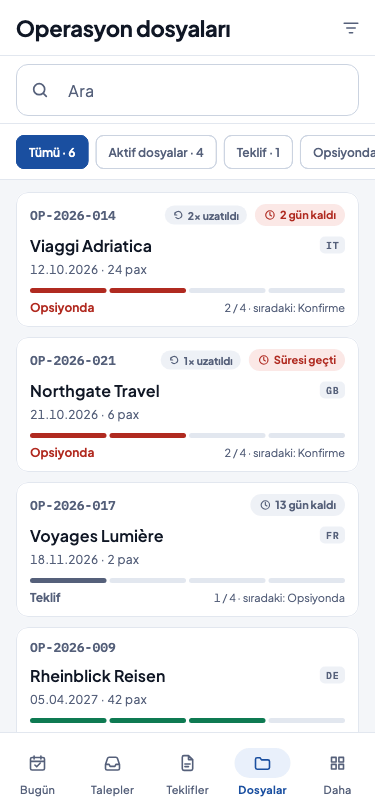
- Filtering by status — with the chips at the top of the list you separate the files by their status; «Tümü» (all) shows all files. If your installation supports it, the chips carry file counts, and there is an «Aktif dosyalar» (active files) chip that shows only the ongoing files.
- Searching — the «Ara» (search) box searches in the file number. If no file matches, it reads «Sonuç yok» (no results).
- Filtering — the filter icon at the top right («Filtrele» (filter)) opens a window: «Sorumlu» (assignee), «Tur yılı» (tour year) and «Aktif dosyalar». Make your choices and press the «Filtrele» button; «Vazgeç» (cancel) closes the window without changing anything. Each filter you apply becomes a chip at the top of the list; the chip’s cross removes the filter. Filters, status chips and search work together.
- Your own files — if you came from a summary box on the «Bugün» (today) screen, the list starts with the «Benim dosyalarım» (my files) chip. When you tap its cross, all of the firm’s files appear.
- The firm’s ongoing files — if you came from the «Tüm Aktif Dosyalar» (all active files) button on the «Bugün» screen, the list opens with the «Aktif dosyalar» filter applied, and the filter’s chip sits at the top of the list (Today and notifications). Here too the list starts with the newest file; the panel’s «Tüm Aktif Dosyalar» block, by contrast, sorts the files by their start date.
- If there are no files at all, it reads «Dosya yok» (no files): «Acente teklifi onayladığında operasyon dosyası açılır.» (When the agency approves the offer, an operation file is opened.)
The file’s page
When you tap a file, the file’s page opens. The page’s title is the file number; below it, the agency, country and number of people are written. Files in «Konfirme» (confirmed) and «Tamamlandı» (completed) status open in the confirmed view, the other files in the summary view. The sections in the two views are the same; only the buttons at the bottom of the page differ (below, in the “Moving the status forward” section). At the top of the page, the file’s open options appear as strips: the option’s badge, how many times it has been extended, and its deadline. Below the strips there are three tabs: «Özet» (summary), «Misafirler» (guests) and «Hareketler» (movements). On the «Özet» tab the cards come in this order. Each section loads on its own; if a section cannot be read, «Tekrar dene» (try again) appears in that section only, and the rest of the page keeps working.- «Acil Durum» (emergency) — the information on the panel’s emergency card; «SALT OKUNUR» (READ-ONLY) is written next to it. The call button next to a phone number opens the number on your phone’s call screen.
- Status card — the file’s status and its next step.
- Information card — «Pax», «Kilitli kur» (locked rate), «Fatura aşaması» (invoicing stage), «Satış tutarı» (sales amount) and, if there is one, «Proforma» (pro forma). Next to a cancelled pro forma number, «(İPTAL EDİLDİ)» (CANCELLED) is written in red. If your installation supports it, the card ends with the file’s assignee and the flight badges (below, in the “Assignee and flight badges” section).
- «Konfirmasyon» (confirmation) — appears while the file is in «Konfirme» status: the confirmation’s status and the last sending details; if it has not been sent yet, it reads «Bu dosya için henüz konfirmasyon gönderilmedi.» (No confirmation has been sent for this file yet.). If you have permission, «Konfirmasyon İndir» (download confirmation) opens the document with your phone’s share menu, and, if your installation supports it, «Konfirmasyonu Gönder» (send the confirmation) sends the confirmation to the agency (below, in the section “Sending the confirmation to the agency”).
- «Saha Ekibi» (field team) — guide, driver and tour leader (below).
- «Misafir Anketi» (guest survey) — the file’s survey (below).
- «Takip» (follow-up) — the file’s follow-up items (below).
- «Opsiyonlar» (options) — the file’s options (below).
- «Notlar» (notes) — the file’s notes (below).
- «Durum Geçmişi» (status history) — the status changes, with who made them and when. Below it, «Kaynak» (source): the offer the file was opened from. If the «Teklifler» (offers) module is switched on, «Teklife Git» (go to offer) opens the offer. If the offer was revised afterwards, the «Kaynak teklif revize edildi» (source offer revised) badge appears.
- «Gönderilen E-postalar» (sent e-mails) — the e-mails sent from the file, their recipients and their results. If no e-mail has ever been sent from the file, this section does not appear.
- «Fatura» (invoice) — the file’s invoicing process: the invoicing stage, the pro forma and invoice details, the collections summary, and the history of the pro formas and of the stage changes (below, in the “Invoice and collections” section). It appears if the «Faturalama» (invoicing) module is switched on and your installation supports it.
- «Tahsilatlar» (collections) — the collections recorded on the file (below). It appears if the «Faturalama» module is switched on and your installation supports it.
- «Ödeme Planı» (payment plan) — the lines of the payment plan: due date, description, amount, status and, if there is one, a note. Below the lines, as on the panel, the plan’s summary: the overdue amount and the next due date, or «Açık vade yok» (no open instalment) when there is none; a warning about the plan, if there is one, is on this line too. If your installation does not support the amounts, the lines show no amount and no summary. It appears if the «Faturalama» module is switched on; if there is no plan, it reads «Henüz ödeme planı yok» (no payment plan yet).
Assignee and flight badges
If your installation supports it, the information card ends with the «Sorumlu» row: the name of the file’s assignee (a dash if there is none) and, on a file that has no assignee or whose assignment awaits approval, the assignment’s badge. Below the row, as in the panel only for the manager, the buttons of the actions possible on that file appear (Operation files):- «Atamayı Onayla» (approve assignment) — appears on a file whose assignee is set but whose assignment awaits approval. It is sent at once, without asking for confirmation; the notification «Atama onaylandı» (assignment approved) appears.
- «Sorumluyu Değiştir» (change assignee) — opens the «Sorumluyu değiştir» (change assignee) window; the «Sorumlu» list opens on the file’s current assignee. Choose another staff member and press the «Sorumluyu Değiştir» button; the notification «Sorumlu değiştirildi» (assignee changed) appears. When a new assignee is chosen, the assignment is approved as well.
Sending the confirmation to the agency
If your installation supports it, the «Konfirmasyon» card has a «Konfirmasyonu Gönder» button below the «Konfirmasyon İndir» button. The button appears if the confirmation has not been sent yet and you are authorised to send it: as in the panel, the file’s assignee or the manager sends it. The panel shows the button faded to someone without the authorisation; on the phone the button does not appear at all. When you press the button, the «Konfirmasyonu acenteye gönder» (send the confirmation to the agency) window opens. The window shows the panel’s description: the address the confirmation PDF will be sent to, and «Gönderim başarılı olunca dosya “konfirmasyon gönderildi” damgalanır ve bu düğme kapanır.» (Once the sending succeeds, the file is stamped “confirmation sent” and this button closes.) If the file’s earlier sending could not be verified, the description says so first: «Bu dosyanın önceki gönderimi doğrulanamadı — yeniden gönderirseniz e-posta acenteye ikinci kez ulaşmış olabilir.» (The earlier sending of this file could not be verified — if you send again, the e-mail may have reached the agency a second time.) The «Alıcı e-posta» (recipient e-mail) field comes filled in with the agency’s registered address; you see the address in full and can change it if needed. If the agency has no registered address, the field comes empty; type the address you want to send to. When you press the «Gönder» (send) button, the e-mail is queued and the panel’s notification appears; «Vazgeç» (cancel) closes the window. The e-mail goes only to the address you typed. You follow the sending’s result in the card’s last sending details and in the «Gönderilen E-postalar» (sent e-mails) section. When the sending succeeds, the file is stamped automatically and the button disappears. If the connection dropped while sending, the window keeps the address you typed and shows the «Tekrar dene» (try again) button. «Tekrar dene» first reads the window again; if the first sending has failed in the meantime, the panel’s warning appears in the description. The e-mail is sent again only when you press the «Gönder» button again. If, while you had the window open, the confirmation was stamped by another sending or the file left «Konfirme» status, the window closes, the card shows its current state and Tourante’s explanation appears. If, in place of the button, it reads «Konfirmasyonu bu cihazdan acenteye göndermek için çıkış yapıp yeniden giriş yapın.» (To send the confirmation to the agency from this device, sign out and sign in again.), sign out and sign in again.Invoice and collections
If your installation supports it and the «Faturalama» module is switched on, the «Özet» tab has the «Fatura» and «Tahsilatlar» sections, right before the «Ödeme Planı» section. Both are for reading only: issuing, sending and cancelling a pro forma invoice, recording the invoice, marking or entering a collection and adding instalments to the payment plan are done in the firm panel (Operation files). The «Fatura» section shows the panel’s «Fatura» card in the same order: the badge of the invoicing stage; if there are any, the pro forma number (with «(İPTAL EDİLDİ)» in red next to a cancelled pro forma), the pro forma date, the invoice number, the invoice date and the collection date; the amount collected and the balance, with the balance in Turkish lira if there is one; the file’s warnings, if any; the payment plan’s overdue amount and next due date; and the pro forma’s amount and rate as they were fixed when it was issued. If invoicing has not started, the pro forma and invoice lines are replaced by «Fatura süreci başlamadı» (the invoicing process has not started) and «Proforma kesildiğinde numara sistem tarafından üretilir ve tutar o anki kilitli kurla sabitlenir.» (When the pro forma is issued, the system generates the number and fixes the amount at the locked rate of that moment.). On a cancelled file the section ends with «Dosya iptal edildi — fatura aşaması donduruldu. İşlem yapmak için önce dosyayı geri açın.» (The file was cancelled — the invoicing stage is frozen. To act on it, reopen the file first.). If the amounts are hidden and you may reveal them, the section has a «Tutarı göster» button (above); when the section is read again, the amounts are hidden again. If an amount cannot be revealed, Tourante’s explanation appears and the amounts stay hidden. If the section cannot be read, the «Fatura okunamadı» (the invoice could not be read) heading and the «Tekrar dene» button appear. The lower part of the section holds two histories:- «Proforma Geçmişi» (pro forma history) — every pro forma issued on the file: its number and date, its amount and rate, the «Geçerli» (valid) or «İPTAL» (cancelled) badge and the «İndir» (download) button; on a cancelled pro forma, who cancelled it, when and why. If there is no pro forma yet, it reads «Henüz proforma kesilmedi.» (No pro forma has been issued yet.).
- «Aşama Geçmişi» (stage history) — every change of the invoicing stage: when, who made it and the new stage; the «Proforma iptal edildi» (pro forma cancelled) badge on a cancellation and «Geri alındı» (reverted) on a revert. If there is no change, it reads «Henüz aşama değişikliği yok.» (No stage change yet.).
proforma-<no>.pdf). If the share menu cannot open, a «Proforma paylaşılamadı» (the pro forma could not be shared) notification appears. As on the panel, only the file’s assignee or a manager downloads a pro forma; for other users the buttons look faded, and holding your finger on one shows «Bu işlem için yetkiniz yok.» (You are not authorised for this action.). Like a pro forma downloaded from the panel, the PDF holds the agency’s name, address and country, even when the «Müşteriler» (customers) module is switched off, the file’s number, service, number of people and tour dates, and the pro forma’s amounts. The app does not store the PDF on the phone: the document stays in the app’s temporary folder only while the share menu is open and is deleted when the menu closes (on Android, the share component’s own copy stays until the next share). You choose where the document goes. Sending the pro forma to the agency through Tourante («Proformayı Gönder» (send the pro forma)) stays in the firm panel.
The «Tahsilatlar» section shows the collections recorded on the file: on each line the date and the payment method, the amount, a note if there is one, and the name of the staff member who recorded the collection with the time it was recorded. Below the lines are the total collected and the balance, and the file’s warnings, if any. If there is no collection, it reads «Henüz tahsilat yok» (no collections yet); if the section cannot be read, the «Tahsilatlar okunamadı» (the collections could not be read) heading and the «Tekrar dene» button appear. The «Tutarı göster» button of the «Fatura» section does not reveal this section’s amounts.
The names and notes in these sections (the staff who recorded a collection, cancelled a pro forma or changed the stage, the reason for a cancellation, and the notes of a collection and of a payment plan line) are seen, as on the panel, by every staff member who opens the file; notes and reasons appear as they were written, including any figure typed into them. The amounts are hidden or shown by the rule above. The app does not store this information on the phone: it keeps it in memory only while you are signed in and clears it from memory when you sign out.
Options
The «Opsiyonlar» section shows all of the file’s options, open and closed: subject, deadline, badge and how many times it has been extended. If there are no options, it reads «Henüz opsiyon yok» (no options yet).- New option — press the «Yeni Opsiyon» (new option) button. Fill in the «Konu» (subject, at most 120 characters) and «Son tarih» (deadline) fields and press the «Kaydet» (save) button. The notification «Opsiyon eklendi» (option added) appears.
- Closing an option — press the «Kapat» (close) button in the open option’s row. In the «Opsiyonu kapat» (close option) window, choose «Kullanıldı» (used) or «Vazgeçildi» (given up) as the «Sonuç» (outcome) and press the «Opsiyonu Kapat» (close option) button. A closed option leaves the countdown; the notification «Opsiyon kapatıldı» (option closed) appears.
- Extending an option — while the file has an open option, the «Opsiyonu Uzat» (extend option) button is at the bottom of the page. In the «Opsiyonu uzat» (extend option) window, if there are several open options, choose the option you will extend under «Konu». In the «Yeni son tarih» (new deadline) field, choose a day after the current deadline and press the «Süreyi Uzat» (extend period) button. The current deadline is saved in the history; how many times the option has been extended appears on the file.
Notes
In the «Notlar» section the file’s notes appear, the newest at the top, with their author and time. If there are no notes, it reads «Henüz not yok» (no notes yet). To add a note, press the «Not Ekle» (add note) button, write in the «Not» (note) field and press the «Kaydet» button. The notification «Not eklendi» (note added) appears. Notes cannot be edited or deleted afterwards.Field team
In the «Saha Ekibi» section the file’s guide, driver and tour leader are listed with their positions. For each person, those of the «Ad Soyad» (full name), «Telefon» (phone), «Araç» (vehicle), «Dil» (language), «Başlangıç» (start), «Bitiş» (end) and «Not» fields that are filled in appear; the button next to the phone number calls it. If there is no team, it reads «Henüz saha ekibi yok» (no field team yet).- Adding — press the «Ekip Üyesi Ekle» (add team member) button. Choose the «Görev» (position) and fill in the «Ad Soyad» and «Telefon» fields. For a driver the «Araç» field appears, for a guide the «Dil» field. If «Başlangıç» and «Bitiş» are left empty, the person counts as on duty for the whole tour. Save with «Kaydet»; the notification «Ekip üyesi eklendi» (team member added) appears.
- Editing — tap the pencil icon next to the person, change the details and press the «Kaydet» button.
- Deleting — press the «Sil» (delete) button in the same window and confirm the question «Ekip üyesi silinsin mi?» (Delete the team member?). Deletion cannot be undone.
Guest survey
The «Misafir Anketi» section appears if the «Anketler» (surveys) module is switched on and you are authorised to see the survey. The section’s description: «Rehber bu kodu turun sonunda misafirlere gösterir. Misafirler telefonlarıyla okutup hesap açmadan yanıt verir.» (The guide shows this code to the guests at the end of the tour. The guests scan it with their phones and answer without creating an account.)- On a survey that has been opened, «Durum» (status), «Anket dili» (survey language), «Açılış» (opening), «Kapanış» (closing), «Bağlantı» (link) and the QR code appear; managers also see the «Yanıt sayısı» (number of responses) information. You can let the guests scan the QR code from your phone’s screen.
- «QR Kartı (PDF)» (QR card, PDF) opens the survey’s QR card with the share menu.
- You can select the link; the app does not copy it automatically. Pay attention to the warning below it: «Bağlantıyı yalnız bu dosyanın misafirleriyle paylaşın; bağlantıyı bilen herkes yanıt verebilir.» (Share the link only with this file’s guests; anyone who knows the link can answer.)
- If the survey has not been opened yet, it reads «Bu dosyanın anketi henüz açılmadı.» (This file’s survey has not been opened yet.). If you are authorised to open the survey, press the «Anketi aç» (open survey) button; the notification «Anket açıldı» (survey opened) appears.
- «Erken Kapat» (close early) — the survey takes no new answers; you can reopen it before its time runs out. The notification «Anket kapatıldı.» (The survey has been closed.) appears.
- «Yeniden Aç» (reopen) — reopens a survey that was closed early, if its time has not run out. The notification «Anket yeniden açıldı.» (The survey has been reopened.) appears.
- «Yeni Bağlantı Üret» (generate new link) — invalidates the old link and the printed QR cards at once; you need to print the new QR card. The notification «Yeni bağlantı üretildi.» (A new link has been generated.) appears.
Survey responses
If your installation supports it, the section ends with the «Anket Yanıtları» (survey responses) button. As in the panel, only the «Yönetici» role sees the responses. The button appears even if the file has been cancelled: a cancelled file’s responses stay readable. On the «Anket Yanıtları» page each response shows «Gönderildi» (submitted; the date and time of submission), «Dil» (language), «Puanlar» (scores) and «Yorumlar» (comments); on a hidden response, the «Durum» (status) row reads «Gizlendi» (hidden), with the reason for hiding and who hid it and when. The name the guest wrote in the survey is never shown on the phone: that name is not verified and appears only in the panel. On a response whose personal information has been deleted, «Kişisel bilgiler silindi» (personal information deleted) is written, with who deleted it and when.- Filtering — the list opens on «Gizlenenler hariç» (excluding hidden). From the «Gizlenen yanıtlar» (hidden responses) filter you can choose «Yalnız gizlenenler» (hidden only) or «Tümü».
- «Gizle» (hide) — in the «Yanıtı gizle» (hide response) window, fill in the «Gizleme nedeni» (reason for hiding) field and press the «Gizle» button. A hidden response is not deleted; it leaves the averages and the score cards and can be shown again. Read the window’s description: hiding permanently deletes that year’s AI summaries of the cards the response scored. The notification «Yanıt gizlendi.» (The response has been hidden.) appears.
- «Göster» (show) — brings a hidden response back into the averages and the score cards. Confirm in the «Yanıtı yeniden göster» (show response again) window; the notification «Yanıt yeniden gösteriliyor.» (The response is shown again.) appears.
- «Kişisel bilgileri sil» (delete personal information) — permanently deletes the name and all the comments in the response; the scores remain. Confirm with the «Sil» (delete) button in the window; this cannot be undone. The notification «Kişisel bilgiler silindi.» (Personal information deleted.) appears.
Follow-up
The «Takip» section appears if the «Takip» module is switched on, and shows the file’s follow-up items: title, type, assignee, deadline, badge and note. If there are no items, it reads «Henüz takip maddesi yok» (no follow-up items yet).- New item — press the «Madde Ekle» (add item) button. In the «Takip maddesi ekle» (add follow-up item) window, fill in the «Tür» (type), «Başlık» (title), «Sorumlu» («Atanmadı» (unassigned) or a staff member), «Son tarih» and «Not» fields and press the «Kaydet» button.
- The item’s buttons — below each item, the buttons allowed for that item appear: «Tamamla» (complete), «Yeniden Aç» (reopen), «Düzenle» (edit) and «Sil». «Tamamla», «Yeniden Aç» and «Sil» ask for confirmation first. A deleted item does not come back.
Moving the status forward
At the bottom of the page is the button that moves the file’s status forward one step. The button’s name changes with the next step: «Opsiyona Al» (put on option), «Konfirme Et» (confirm) or «Tamamlandı İşaretle» (mark as completed). The button acts at once, without asking for confirmation; the notification «Durum güncellendi» (status updated) appears. When the file moves to «Konfirme» status, the page switches to the confirmed view. The button appears only if moving forward is allowed in the file’s current status; a button that appears disabled in the panel does not appear on the phone at all. In the summary view, the «Opsiyonu Uzat» button is above this button. If your installation supports it, the buttons for moving the status back and cancelling also sit in a row right above the forward button (below). If someone else has changed the file’s status in the meantime, the page shows the file’s current state and Tourante’s explanation appears.Moving back and cancelling
If your installation supports it, at the bottom of the page, above the forward button, a button appears for each action you can take on that file. The rules are the same as in the panel (Operation files):- «Geri Al» (undo) — returns the file to its previous status. Only the manager uses it. The «Durumu geri al» (undo status) window states which status the file will return to; confirm with «Geri Al». The notification «Durum geri alındı» (status undone) appears.
- «Dosyayı İptal Et» (cancel file) — the file’s assignee or the manager uses it. In the «Dosyayı iptal et» (cancel file) window, fill in the «İptal nedeni» (cancellation reason) field and press the «Dosyayı İptal Et» button; if the reason is left empty, Tourante’s explanation appears below the field. The notification «Dosya iptal edildi» (file cancelled) appears.
- «İptali Geri Aç» (undo cancellation) — returns a cancelled file to the status it was in at the moment it was cancelled. Only the manager uses it. The «İptali geri aç» (undo cancellation) window states which status the file will return to; the cancellation reason is removed from the file and stays in the «Durum Geçmişi» (status history) section. Confirm with «İptali Geri Aç»; the notification «İptal geri açıldı» (cancellation undone) appears.
Guests
The file’s «Misafirler» tab opens the file’s guest list. The page’s title is the file number; below it, the number of people is written. For each guest the list has a sequence number and the «Ad Soyad · Not» (full name · note), «Oda» (room) and «Tip» (type) columns. Situations you should check appear as warnings above the list; the type label of rows with a mismatched room type is coloured. If there are no guests, it reads «Henüz misafir girilmedi» (no guests entered yet). On a cancelled file the list stays read-only: «Dosya iptal edildi — liste salt okuma. Ekleme, düzenleme ve silme kapalı.» (File cancelled — the list is read-only. Adding, editing and deleting are disabled.) Anonymising is the exception (below).Adding a guest
If your installation supports it, the «Misafir Ekle» (add guest) button is at the bottom of the page, above the «Toplu Yapıştır» (bulk paste) button. To add a single guest:- Press the «Misafir Ekle» button. The «Misafir Ekle» window opens with empty fields.
- Fill in the «Ad Soyad» (full name), «Oda no» (room no.), «Oda tipi» (room type) and «Not» (note) fields.
- Press the «Kaydet» (save) button.
Bulk pasting
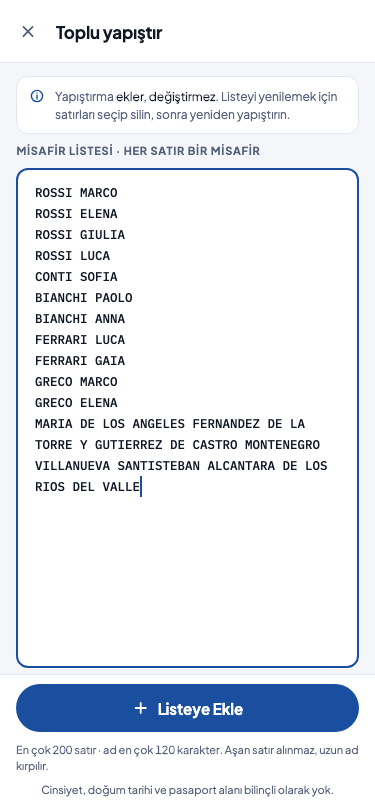
To add the list the agency sent in one go:- Press the «Toplu Yapıştır» button at the bottom of the page. The «Toplu yapıştır» (bulk paste) page opens.
- Paste the list into the «Misafir listesi · her satır bir misafir» (guest list · one guest per line) field.
- Press the «Listeye Ekle» (add to list) button.
Editing and deleting a row
- Editing — tap the row’s pencil icon. In the «Satırı düzenle» (edit row) window, change the «Ad Soyad», «Oda no» (room no.), «Oda tipi» (room type) and «Not» fields and press the «Kaydet» button.
- Deleting a single row — press the «Sil» button in the same window and confirm.
- Deleting several rows — press the «Seç» (select) button at the top of the page, tick the rows to delete and press the «Seçilenleri Sil» (delete selected) button. Confirm in the «Misafirleri sil» (delete guests) window. Deletion cannot be undone.
Anonymising
If your installation supports it, to delete a guest’s personal information, long-press the row and tap «Anonimleştir» (anonymise) in the list that opens. The panel’s confirmation window, «Misafiri anonimleştir» (anonymise guest), shows the panel’s description: the guest’s name is replaced by a name made of “Anonim misafir #” (anonymous guest #) and the record’s number, and the note is deleted; the room number, room type and sequence stay. This cannot be undone. Request and offer texts, file notes, departure reservations, individual transfers and sent e-mails are not searched; correct the name in those records separately. Have a manager delete the name and comments in the survey responses with «Kişisel bilgileri sil» (delete personal information) in the «Anket Yanıtları» (survey responses) list. When you press the «Anonimleştir» button in the window, the «Misafir anonimleştirildi» (guest anonymised) notification appears and the row shows its new name. If the guest is already anonymous, the window says so; if you confirm, the «Bu misafir zaten anonim» (this guest is already anonymous) notification appears and nothing changes. Anonymising also works on a cancelled file; there, the long press is the row’s only action. In the selection mode, the long press does not open this list.Lists and printouts
While the list has guests, the printout buttons appear at the bottom of the page:- «Rooming Listesi (PDF)» (rooming list, PDF) — prepares the rooming list as a PDF and opens it with your phone’s share menu. While it is being prepared, it reads «Rooming listesi hazırlanıyor…» (preparing the rooming list…).
- «Pax Listesi» (pax list) — the pax list as numbered plain text.
- «Pax Listesi (Excel)» (pax list, Excel) — tab-separated text to paste into a spreadsheet.