Today
At the top of the screen, the «Bugün» heading and the day’s date are written; in the strip below them, your name and your role appear. There are two buttons at the top right:- Bell — opens the «Bildirimler» screen. If you have unread notifications, a dot appears on the bell.
- Your initials — open the account menu: «Çıkış yap» (sign out) and, if your installation supports it, the button that switches your option e-mails off and on and «Açık Oturumlar» (open sessions), which shows the devices you are signed in on; if you have the «Yönetici» role and your installation supports it, also «Destek Erişimi» (support access) and «Kullanıcılar» (users); if the «Geri Bildirim» (feedback) module is on and your installation supports it, also «Geri Bildirim» (Getting started on the phone).
Summary boxes
If the «Operasyonlar» module is switched on, the panel’s summary boxes appear at the top:- «Aktif Dosya» (active files) — the number of ongoing files you are the assignee of.
- «Opsiyonda» (on option) — how many of these files are on option.
- «En Yakın Opsiyon» (nearest option) — the nearest deadline among your open options.
- «Portföyüm» (my portfolio) — the total sales amount of your ongoing files, in euros.
My upcoming options
The «Yaklaşan Opsiyonlarım» (my upcoming options) block shows the open options in your files whose deadline falls within 7 days, and those that have expired. Each row holds the file number, the option’s subject and the countdown badge.- When you tap a row, the option’s file opens.
- The «Tümü» (all) button at the top of the block opens the «Operasyon dosyaları» list.
- If there is no such option, it reads «Yaklaşan opsiyon yok» (no upcoming options): «Önümüzdeki 7 günde son tarihi dolan opsiyonunuz yok.» (You have no options whose deadline falls in the next 7 days.)
Today’s movements
If the «Transferler» module is switched on, the «Bugünkü hareketler» (today’s movements) block lists the day’s meeting and seeing-off transfers. Each row holds the time, direction, guest and number of people, flight and hotel; a transfer with no vehicle assigned shows the «Araç yok!» (No vehicle!) warning.- When you tap a row, the transfer’s details open.
- When you tap the number of movements at the top of the block, the «Transferler» screen opens (Transfers, departures and daily operations on the phone).
- If there are no transfers today, it reads «Bugün hareket yok» (no movements today).
My follow-up items
If the «Operasyonlar» and «Takip» (follow-up) modules are switched on, the open follow-up items assigned to you are listed in the «Takip Maddelerim» (my follow-up items) block; the overdue ones are at the top. When you tap an item, the item’s file opens. If you have no open items, it reads «Açık takip maddeniz yok» (you have no open follow-up items). For the follow-up items themselves, see the Follow-ups page.The manager’s blocks
The blocks below show the whole firm and, as in the panel, are visible only to the «Yönetici» (manager) role. They come below the «Takip Maddelerim» block, in the same order as in the panel. Users with the «Yönetici» role sign in on the phone with a verification code after their password and see these blocks (Getting started on the phone).- «Durum Sayaçları» (status counters) — the number of the firm’s files by status. When you tap a counter, the «Operasyon dosyaları» list opens with all the files in that status.
- «Kritik Opsiyonlar» (critical options) — the open options in the firm’s ongoing files whose deadline falls within 7 days or has passed. Each row states the file number, subject, deadline and assignee; a file without an assignee shows a red «Atanmamış» (unassigned) badge.
- «Geciken Tahsilatlar» (overdue collections) — the files whose payment plan holds a payment past its due date and not yet collected, the oldest delay at the top. Each row states the file number, the agency, the oldest overdue payment and how many days it is overdue; if your installation supports it, the overdue amount is below the day count. The amount of a file whose invoicing stage is «Yok» is hidden, from a manager too, as on the panel. This block also needs the «Faturalama» (invoicing) module to be switched on.
- «Ekip Özeti» (team summary) — if your installation supports it: «Kişi başına yürümekteki dosyalar, portföy ve sıradaki grup.» (Ongoing files, portfolio and next group per person.) There is one card for each staff member: their name, their number of ongoing files, their portfolio (the sales total of their ongoing files, in euros and always in full) and their next group, that is the file number and the start date. On the card of someone whose files include some without an amount, the panel’s explanation is written too. The files without an assignee, or whose assignee is no longer one of the firm’s staff (a deleted user, for example), are gathered on the last card, «Atanmamış» (unassigned). When you tap a person’s card, the «Operasyon dosyaları» list opens with that person’s ongoing files; the «Atanmamış» card opens nothing. The «Tüm Aktif Dosyalar» (all active files) button at the top of the block opens all of the firm’s ongoing files. If the block cannot be read, the «Ekip özeti okunamadı» (the team summary could not be read) heading and the «Tekrar dene» (try again) button appear.
- «Atama Uyarıları» (assignment warnings) — the files with no assignee or whose assignment is awaiting approval, with their assignees.
- «Tüm Aktif Dosyalar» (all active files) — opens the «Operasyon dosyaları» list with the «Aktif dosyalar» (active files) filter, with all of the firm’s ongoing files. The list keeps its own order, the newest file at the top; it is not sorted by start date like the panel’s block. Each card states the file’s assignee (Files and guests on the phone).
- «Takip» (follow-up) — opens the «Takip» screen, which shows all of the firm’s follow-up items (below, in the “The firm’s follow-up items” section). This button also needs the «Takip» module to be switched on.
- «Cari Hesaplar» (current accounts) — opens the «Cari Hesaplar» screen, which shows the agencies’ current accounts (below, in the “Current accounts” section). This button also needs the «Müşteriler» and «Faturalama» modules to be switched on.
- «Müşteriler» (customers) — opens the «Müşteriler» screen, which shows the firm’s agencies and their agency cards. This button also needs the «Müşteriler» module to be switched on.
- «Tedarikçiler» — opens the «Tedarikçiler» screen, which shows the supplier cards. As on the panel, every staff user sees it; the «Oteller» module needs to be switched on, and the button appears even if the «Operasyonlar» module is off.
- «Oteller» (hotels) — opens the «Oteller» screen, which shows the hotel cards. This button also needs the «Oteller» module to be switched on.
Approving an assignment and changing the assignee
Below the rows of the «Atama Uyarıları» block there are two buttons:- «Atamayı Onayla» (approve assignment) — appears only on rows whose assignment can be approved: files whose assignee is set but whose assignment is awaiting approval. It acts at once, without asking for confirmation; the notification «Atama onaylandı» (assignment approved) appears.
- «Sorumluyu Değiştir» (change assignee) — opens the «Sorumluyu değiştir» (change assignee) window. Choose a staff member from the «Sorumlu» (assignee) list and press the «Sorumluyu Değiştir» button; the notification «Sorumlu değiştirildi» (assignee changed) appears. On a row without an assignee, the list opens empty and the button stays disabled until you choose a person.
The firm’s follow-up items
The «Takip» screen shows the follow-up items of all of the firm’s files in one list; it is the phone’s counterpart of the panel’s firm-wide follow-up screen (Follow-ups). The screen is for reading only.- Filtering — at the top of the list there are four filters: «Sorumlu», «Tür» (type), «Durum» (status) and «Son tarih aralığı» (deadline range; «Başlangıç tarihi» (start date) and «Bitiş tarihi» (end date)). As in the panel, the screen opens with the open items.
- The items — each item shows «Dosya» (file), «Tür», «Başlık» (title), «Sorumlu», «Son tarih» (deadline) and the item’s badge. When you tap an item, the item’s file opens; you change the item there, in the file’s «Takip» section.
- If no item matches the filters, it reads «Takip maddesi bulunamadı» (no follow-up item found).
Current accounts
The «Cari Hesaplar» screen and the two pages it opens are the phone’s counterpart of the panel’s «Cari Hesaplar», «Hesap Özeti» (account statement) and «Hareketler» (movements) pages (Current accounts and reports). As on the panel, only a manager sees them. The screens are for reading only; there is no «Excel İndir» (download Excel) on the phone, and you download the list and the account file as Excel from the panel.- «Cari Hesaplar» — every agency with a pro forma, a collection or a payment plan is a card; the one with the highest balance is at the top, and the files without an agency are gathered on the last card, «Acentesiz dosyalar» (files without an agency). A card shows the number of files, the debt, the amount collected, the balance, the overdue amount, the overdue amount by age in days, the amounts not yet due and without a due date, and the oldest delay. «Toplam» (total), below the cards, gives the total of all agencies, the cancelled files that do not count towards the balance, if any, and the panel’s two explanations. If there is no current account, it reads «Cari hesap yok» (no current account): «Proforması, tahsilatı ya da ödeme planı olan dosya bulunmuyor.» (There is no file with a pro forma, a collection or a payment plan.) When you tap an agency’s card, that agency’s account statement opens; the «Acentesiz dosyalar» card opens nothing.
- Account statement — the page title states the agency’s name. You also open the account statement with the «Hesap Özeti» button on the agency card of the «Müşteriler» screen (Agencies and suppliers on the phone). The «Özet» (summary) section shows the debt, the amount collected and the balance, the number of files and of files with a pro forma, and any advance; the «Vade Dağılımı» (ageing) section shows the overdue amount by age in days and the amounts not yet due and without a due date. In the «Dosyalar» (files) section, each file shows its start date, status, invoicing stage, pro forma, debt, amount collected, balance, overdue amount, next due date and warning note; under «Görünüm» (view) you choose «Açık kalemler» (open items, the default) or «Tüm dosyalar» (all files). When you tap a file, the file opens. The «İptal Edilen Dosyalar» (cancelled files) section, if there are any, shows the files that do not count towards the balance. The «Hareketler» button at the top of the page opens the agency’s account movements.
- Account movements — under «Dönem» (period) you choose the «Başlangıç» (start) and «Bitiş» (end) dates; the start comes as the first day of this year; until you choose an end, the period stays open and every movement from the start on is shown. The page shows the opening balance, a debit line for each pro forma and a credit line for each collection, the running balance on every line and, at the end, the closing balance of the period. If there is no movement between the chosen dates, it reads «Bu dönemde hareket yok» (no movements in this period). As on the panel, the movements are calculated from the records as they are today.
Notifications
The «Bildirimler» screen shows the notifications of the bell in the firm panel: the same notifications appear in the panel and on the phone (Panelim). You open the screen from the bell on the «Bugün» screen or from the «Bildirimler» tab in the menu. This screen exists for every role and whichever modules are switched on.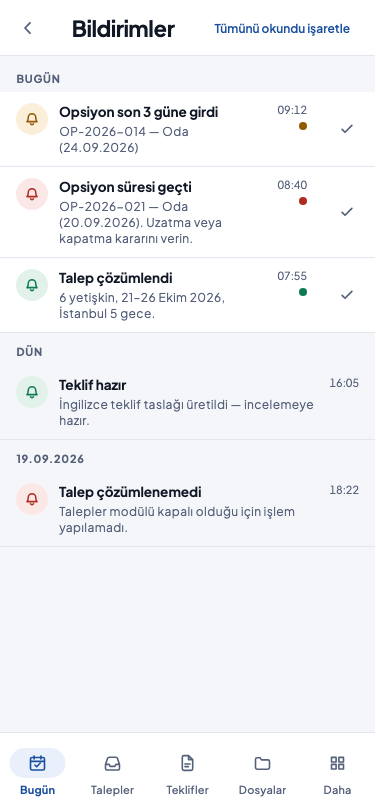
- Notifications are grouped by day: «Bugün», «Dün» (yesterday), and a date for older days. Unread notifications stand out. When you reach the end of the list, older notifications load.
- When you tap a notification that mentions a file, the file opens. Opening a notification does not mark it as read.
- To mark an unread notification as read, tap the tick next to it («Okundu işaretle» (mark as read)). While there are unread notifications, «Tümünü okundu işaretle» (mark all as read) at the top of the screen marks them all as read at once.
- If there are no notifications at all, it reads «Bildirim yok» (no notifications).