Transfers
The «Transferler» screen depends on the «Transferler» module; this module starts switched off in a new firm (Sign-in and roles). If your installation supports it, the work of the panel’s transfer desk is done on the phone too: you mark that you have sent the driver’s list with «Kopyaladım» (I have copied it), you add transfers entered by hand with «Münferit Transfer Ekle» (add individual transfer) and edit and cancel them from the transfer’s page, and you see the cancelled ones with «İptal Edilenler» (cancelled). Again if your installation supports it, each row also shows, as on the panel, where it comes from and, when a vehicle’s capacity is exceeded, the capacity badge. With the «Tümü» chip you see the transfers of 30 days together. For where the rows come from, see the Transfers and daily operations page.Choosing the day and the direction
The screen opens on today and shows one day. As on the panel, you can also see the transfers of the 30 days starting today together.- The arrows on either side of the date («Önceki gün» (previous day) and «Sonraki gün» (next day)) change the day. When you tap the date, a calendar opens.
- The «Tümü» (all) chip in front of the direction chips shows the transfers of the 30 days starting today in one list: each day’s rows stand under that day’s date, and the day strip (the date and its arrows) is hidden. When you tap the chip again, the screen goes back to today.
- With the direction chips you see only the meeting rows or only the seeing-off rows; «Tümü», the first of the direction chips, shows both together.
- At the top right of the screen, the number of movements listed is written.
- If there are no transfers in the list, it reads «Transfer yok» (no transfers): «Karşılama ve uğurlama hareketleri burada listelenir.» (Meeting and seeing-off movements are listed here.)
The list
Each card holds the time, direction, guest and number of people, hotel or place, flight and vehicle. If your installation supports it, below the hotel or place it also reads where the row comes from, as in the panel’s «Kaynak» (source) column: on a row that comes from a departure reservation, the tour’s name and «(Garanti)» (guaranteed); on an individual transfer linked to a file, the file number and the agency; on an individual transfer linked to no file, «Münferit» (individual). The transfer’s page shows the same in its «Kaynak» row. Missing information, an exceeded capacity, and changes since the day was sent to the driver, appear on the card:- «Araç yok!» (No vehicle!) — no vehicle has been assigned to the transfer.
- «Dönüş uçuşu eksik» (return flight missing) — the return flight of the seeing-off row has not been entered.
- The capacity badge — if your installation supports it, when the number of people assigned to a vehicle on the same trip exceeds the vehicle’s capacity, the panel’s badge appears on that vehicle’s rows: the number of people assigned, the capacity and how many people too many there are. When you press and hold the badge, the total number of people assigned to the vehicle on that trip and the vehicle’s capacity appear. The panel also shows this excess in a yellow strip above the list; on the phone the excess appears only in the rows’ badges. On the transfer’s page the badge is below the «Araç» (vehicle) row.
- «Değişti» (changed) — after the day was marked as sent with «Kopyaladım», the row’s time, vehicle, number of people, or hotel or place changed.
- «Yeni» (new) — the row was not in the day’s list that was marked as sent.
List text for the driver
The document icon at the top right («Liste metni» (list text)) opens the driver list for the day and direction you are showing, in the «Kopyalanacak liste» (list to copy) window. While the «Tümü» chip is on, «Liste metni» opens the text of the 30 days in the list. The text is the same as the panel’s list sent to the driver and contains phone numbers. The app does not copy the text to the clipboard automatically: select the text, copy it and paste it into your messaging app. If there are no transfers that day, it reads «Bu gün için transfer yok.» (No transfers for this day.) If your installation supports it, at the top of the window you choose between the panel’s two texts: «Listeyi Kopyala» (copy list) shows the plain text to paste into a messaging app, «Excel’e Kopyala» (copy to Excel) the tab-separated text to paste into a spreadsheet; with the second, the window’s title becomes «Excel’e yapıştırılacak liste» (list to paste into Excel). Below the text, if the day was marked as sent before, a line says when the list was last copied, and if rows have left the list since then, another line counts them with their guests’ names. After sending the text to the driver, press the «Kopyaladım» button. As in the panel, «Kopyaladım» marks that day as sent: Tourante records the day, the time and the user who marked it, and the window shows the text after the mark; the «Değişti» and «Yeni» badges in the list are worked out again from this new mark. The mark covers only the rows of the text shown in the window. If, after the window opened, a row’s time, vehicle, number of people, hotel or place, guest name or direction changed, or a row joined or left the list, Tourante does not set the mark: the window shows the text as it is now, and Tourante’s explanation appears. Copy and send the new text, then press the «Kopyaladım» button again. A change outside these fields, such as the flight, the phone or the greeter, does not block the mark. The «Kapat» (close) button sets no mark; while the list is empty, «Kopyaladım» does not appear. If, in place of the button, it reads «Listeyi kopyaladım olarak işaretlemek ve elle girilen transferleri bu cihazdan eklemek, düzenlemek veya iptal etmek için çıkış yapıp yeniden giriş yapın.» (To mark the list as copied and to add, edit or cancel transfers entered by hand from this device, sign out and sign in again.), sign out and sign in again.The transfer desk’s list
If your installation supports it, next to the «Liste metni» icon is the transfer desk’s «İşlemler» (actions) icon. The icon opens, in a list, the actions you see: «Münferit Transfer Ekle» (below, “Adding an individual transfer”) and «İptal Edilenler» (below, “Cancelled transfers”). On a tablet, when the list pane’s header has no room for both icons and the number of movements, «Liste metni» becomes the first row of this list too.Transfer details
When you tap a transfer, the transfer’s page opens. While the page is loading, the heading reads «Transfer detayı» (transfer details); then the transfer’s time and direction come into the heading. Below the heading are the number of the file it is linked to and the date. If the transfer is linked to a file, you open the file by tapping the file number at the very top. The card holds this information: «Saat» (time), «Varış uçuşu» (arrival flight) for a meeting transfer or «Dönüş» (return) for a seeing-off transfer, «Otel / Yer» (hotel / place), «Telefon» (phone), «Misafirler» (guests), «Araç» (vehicle) and, if there is one, «Karşılamacı» (greeter). The «Telefon» line also states whose number it is; the call button next to it opens the number on your phone’s call screen.Actions
On transfers that come from a departure reservation, the «İşlemler» button is at the bottom of the page. The button opens the panel’s actions, in the panel’s order, in a list:- «Saati Düzelt» (correct time) — in the «Saati düzelt» (correct time) window, choose the day and time for «Yeni saat» (new time) and press the «Saati Düzelt» button. «Bu düzeltme kaynağı günceller — depar ekranında da yeni saat görünür. Eski saat iz olarak saklanır.» (This correction updates the source — the new time also appears on the departure screen. The old time is kept in the audit trail.)
- «Otobüs Ata» (assign bus) — in the «Otobüs ata» (assign bus) window, choose one of the departure’s buses as the «Otobüs» (bus) and press the «Otobüs Ata» button. If the departure has no bus yet, this action is disabled: «Bu deparda henüz otobüs yok — önce depar panosundan otobüs ekleyin.» (This departure has no bus yet — first add a bus from the departure board.) If your installation supports it, you can also add the bus from the phone, with «Otobüs Ekle» (add bus) on the departure’s page (below, “Departure details”).
- «Transfer Aracı Yaz» (enter transfer vehicle) — enters by hand the vehicle to be used instead of the bus. Fill in the «Transfer aracı» (transfer vehicle) and «Araç kapasitesi» (vehicle capacity) fields and press the «Transfer Aracı Yaz» button. «Boş bırakırsanız bu araç için kapasite uyarısı hesaplanmaz.» (If you leave it empty, no capacity warning is calculated for this vehicle.)
- «Kaynağa Dön» (back to source) — appears only while there is a vehicle written by hand. In the confirmation window, press the «Kaynağa Dön» button: «Elle yazdığınız transfer aracı silinecek ve satır yeniden deparın otobüsünü gösterecek.» (The transfer vehicle you wrote by hand will be deleted and the row will show the departure’s bus again.)
- «Depara Git →» (go to departure →) — appears at the end of the list while the transfer is linked to a departure. It opens the departure’s page in the «Departlar» (departures) tab (below, “Departure details”).
- «Düzenle» (edit) — opens the transfer’s form, filled in with its details, on the «Münferit transferi düzenle» (edit individual transfer) page (below, “Adding an individual transfer”). When you press the «Kaydet» (save) button, the «Münferit transfer güncellendi.» (Individual transfer updated.) notification appears and you return to the transfer’s page. If someone else has changed the transfer in the meantime, the form fills in again with the transfer’s current details and Tourante’s explanation appears above the form; make your change again and save. If the transfer was cancelled in the meantime, the form closes and Tourante’s explanation appears.
- «Transferi İptal Et» (cancel transfer) — opens the panel’s confirmation window. The «Transferi iptal et» (cancel transfer) window reads: «İptal silme değildir: kayıt izde kalır ama listede, kopyalanan metinde ve uyarılarda görünmez. Şoföre gönderilmiş bir listede yer alıyorsa, o günün satırları “değişti” işareti taşır.» (Cancelling is not deleting: the record stays in the audit trail but does not appear in the list, in the copied text or in the warnings. If it is in a list sent to the driver, that day’s rows carry the “changed” mark.) When you press the «Transferi İptal Et» button, the «Transfer iptal edildi.» (Transfer cancelled.) notification appears and the transfer’s page closes. You see the cancelled transfer on the «İptal Edilen Transferler» (cancelled transfers) page (below).
Adding an individual transfer
«Münferit Transfer Ekle» in the transfer desk’s list opens the panel’s individual transfer form on the «Münferit transfer ekle» (add individual transfer) page. The «Münferit Transfer Ekle» button on the transfers page that a file’s «Hareketler» (movements) tab opens also opens the same form; there it comes with the file and its agency filled in (Files and guests on the phone). The fields are the same as the panel’s, in the same order:- «Tarih ve saat» (date and time) — «Karşılamada uçağın iniş saati, uğurlamada misafiri otelden alış saati.» (For a meeting transfer, the plane’s landing time; for a seeing-off transfer, the time the guest is picked up from the hotel.)
- «Yön» (direction) — «Karşılama» (meeting) or «Uğurlama» (seeing off).
- «Misafir» (guest) — one line, as the agency gave it.
- «Pax» — the transfer’s number of people; it can differ from the file’s number of people.
- «Uçuş no» (flight no.).
- «Otel / Alış–bırakış yeri» (hotel / pick-up–drop-off place) — the place the driver goes to.
- «İrtibat telefonu» (contact phone).
- «Araç» (vehicle) — you can leave it empty; the row appears in the list with the «Araç yok!» warning, and the entry is not blocked.
- «Araç kapasitesi» (vehicle capacity) — «Boş bırakırsanız bu araç için kapasite uyarısı hesaplanmaz.»
- «Karşılamacı» (greeter) — usually the guide or the transfer coordinator; you can leave it empty.
- «Acente» (agency) — if you choose one, the agency’s number appears on the row while the contact phone is empty. The field appears if the «Müşteriler» (customers) module is switched on.
- «Dosya» (file) — for the record only: the transfer does not carry the file’s amount or exchange rate. The field appears if the «Operasyonlar» module is switched on.
Cancelled transfers
«İptal Edilenler» in the transfer desk’s list opens the panel’s «İptal Edilen Transferler» page. The page is for reading only: a cancelled transfer cannot be changed or restored here. The page holds only the transfers that were entered by hand and then cancelled; the most recently cancelled is at the top. Each card holds the transfer’s direction, the guest’s name and number of people, the flight and the place, and the panel’s two times: «Transfer zamanı» (transfer time) and «İptal zamanı» (cancellation time). Guests’ names appear as on the panel’s page; no phone number is shown. When you type in the «Ara» (search) box at the top, the list is filtered by guest name. If no transfer has been cancelled, it reads «İptal edilen transfer yok» (no cancelled transfers); if no transfer matches your search, «Sonuç yok» (no results).Guaranteed departures
The «Departlar» (departures) tab in the menu opens the «Garanti departlar» list; the tab depends on the «Departlar» module. Each card holds the tour’s name, the departure’s status, the departure and return dates, and an occupancy bar with an occupancy sentence: the seats sold and the capacity, the seats left, or that no seats are left or the capacity has been exceeded. The cards show no prices.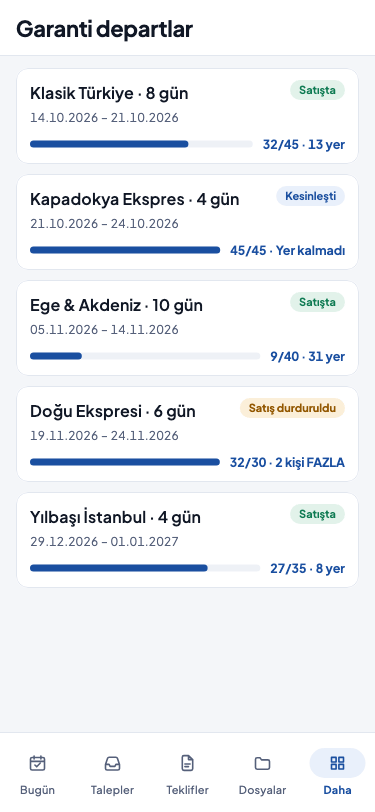
- Above the list there are two tabs: «Gelecek Departlar» (upcoming departures) and «Geçmiş» (past). The screen opens on «Gelecek Departlar»; «Geçmiş» shows the departures whose departure date is before today.
- On the card, below the occupancy bar, the panel’s warning badges appear: «KAPASİTE AŞILDI» (capacity exceeded), the number of people with no bus assigned, and the number of reservations with a missing flight. When you press and hold the «KAPASİTE AŞILDI» badge, the panel’s explanation appears: «Doluluğa sayılan pax kapasitenin üstünde. Kapasiteyi düzenleyebilir veya kayıtları gözden geçirebilirsiniz.» (The pax counted towards occupancy are above the capacity. You can edit the capacity or review the records.) Below the badges, the departure’s number of agencies and of buses is written.
- The «Filtrele» (filter) icon beside the tabs opens the filter window. Under «Durum» (status), choose a status; when you tap the chosen status again, the choice is cleared. Under «Kalkış tarihi aralığı» (departure date range), choose the «Kalkış — başlangıç» (departure — from) and «Kalkış — bitiş» (departure — to) dates; you can also use either of them alone. The «İşi kalanlar» (needing work) switch shows only the departures that still need work: «Kapasitesi aşan, otobüsü atanmamış pax’ı olan veya uçuş bilgisi eksik departlar.» (Departures over capacity, with pax not assigned to a bus, or with missing flight information.) The «Filtrele» button applies the filters, «Vazgeç» (cancel) closes the window. While a filter is applied, the icon appears in colour.
New departure
If your installation supports it, the «Yeni Depar» (new departure) icon is at the top right of the screen. The icon opens the panel’s departure form:- «Tur adı» (tour name).
- «Kapasite» (capacity) — «Satış tavanı. Uçak/otobüs/otel doluluğuna göre siz belirlersiniz; otobüs kapasitelerinden türetilmez. Gerekçeyi iç nota yazabilirsiniz.» (The sales ceiling. You set it by the plane, bus and hotel occupancy; it is not derived from the bus capacities. You can write the reason in the internal note.)
- «Kalkış tarihi» (departure date) and «Dönüş tarihi» (return date) — the return cannot be before the departure.
- «Diller» (languages) — the tour’s guide languages; you can choose more than one language.
- «İç not» (internal note) — «Ekip içi not — acenteye gitmez.» (A note for the team — it does not go to the agency.)
Departure details
When you tap a departure, the departure’s page opens. While the page is loading, the heading reads «Depar detayı» (departure details); then the tour’s name comes into the heading, the departure’s dates below it and its status beside it. Below the heading is the occupancy strip. If your installation supports it, below the occupancy strip are the buttons of the panel’s departure board. Each button appears only for an action that can be done at that moment:- «Düzenle» (edit) — opens the departure’s form with its details filled in (above, “New departure”). When you press the «Kaydet» button, the form closes and the page is updated.
- Moving the status forward — as on the panel, the button’s name changes with the next status: «Satışı Durdur» (stop sales), «Deparı Kesinleştir» (make departure definite) or «Tamamlandı İşaretle» (mark as completed). No confirmation is asked.
- «Geri Al» (step back) — moves the status back by one step and appears only to the «Yönetici» role. The «Durumu geri al» (step the status back) window says which status the departure will return to; confirm with the «Geri Al» button.
- «Deparı İptal Et» (cancel departure) — opens the «Deparı iptal et» (cancel departure) window. The window shows the panel’s explanation: «Bu deparı iptal etmek istediğinize emin misiniz? İptal edilen depar listede soluk görünür; rezervasyonlar ve otobüsler SİLİNMEZ. Bu deparın misafirleri şoför listesinden ve Listeyi Kopyala ile gönderilen metinden DÜŞER.» (Are you sure you want to cancel this departure? A cancelled departure appears faded in the list; the reservations and buses are NOT DELETED. This departure’s guests DROP OUT of the driver’s list and of the text sent with Listeyi Kopyala.) Fill in the «İptal nedeni» (cancellation reason) field and press the «Deparı İptal Et» button.
- «Depar Özeti» (departure summary) — appears if your installation supports it and the departure carries a warning or a bus capacity note: the panel’s warning badges and the bus capacity line. If no bus has its capacity entered, this line says that the total capacity warning cannot be worked out; if the number of people assigned to the buses exceeds the total of the bus capacities entered, it says how many seats are short.
- «Acente Kırılımı» (agency breakdown) — if your installation supports it and the «Müşteriler» (customers) module is on, how many people each agency has booked, starting with the agency that booked the most; the people with no agency are on the «Acentesiz» (no agency) row. If no reservation counts towards occupancy, it reads «Acente kırılımı yok» (no agency breakdown): «Doluluğa sayılan rezervasyon girildiğinde acente başına pax burada listelenir.» (When a reservation counted towards occupancy is entered, the pax per agency are listed here.)
- «Diller» (languages) — the departure’s languages, if the departure specified any.
- «Otobüsler» (buses) — the departure’s buses (below).
- «Rezervasyonlar» (reservations) — the departure’s reservations (below).
- «Misafir Anketi» (guest survey) — the departure’s guest survey (below, “The departure’s survey”).
Buses
In the «Otobüsler» section, each bus’s name, number of passengers, language and guide are shown. On a bus with no capacity entered, «Kapasite girilmemiş» (no capacity entered) is written as a warning; on a bus whose capacity has been exceeded, how many people too many there are. If there are no buses, it reads «Henüz otobüs yok» (no buses yet). If your installation supports it, you manage the buses from the phone too:- «Otobüs Ekle» (add bus) — the button in the section’s heading opens the form: «Otobüs adı / plaka» (bus name / plate; required), «Kapasite» («Boş bırakabilirsiniz; boşken bu otobüs için taşma uyarısı hesaplanmaz.» (You can leave it empty; while it is empty, no overflow warning is worked out for this bus.)), «Dil» (language; the bus’s one guide language, chosen from all the guide languages, not only the departure’s; when you tap the chosen language again, the choice is cleared) and «Rehber» (guide). Save with «Kaydet».
- «Düzenle» — the button below the bus opens the same form with its details filled in.
- «Otobüsü Sil» (delete bus) — opens the «Otobüsü sil» (delete bus) window: «Bu otobüs kalıcı olarak silinecek. Atanmış rezervasyonu olmadığı için kimse etkilenmez.» (This bus will be deleted permanently. As it has no reservation assigned, nobody is affected.) If a reservation is assigned to the bus, the button appears faded and below it reads «Bu otobüse atanmış rezervasyon var — önce atamaları kaldırın.» (This bus has a reservation assigned — remove the assignments first.)
Reservations
In the «Rezervasyonlar» section, each reservation’s guest, agency («Acentesiz» if it has none), number of people and status; its bus and language; its arrival and return flights and «Ref no» (ref. no.) are shown. Cancelled reservations appear faded in the list. If there are no reservations, it reads «Henüz rezervasyon yok» (no reservations yet). If your installation supports it, you manage the reservations from the phone too. As on the panel, both «Yönetici» and «Operasyon elemanı» can do the reservation actions.- «Yeni Rezervasyon» (new reservation) — the button in the section’s heading opens the reservation form (below, “The reservation form”). No reservation can be entered on a cancelled departure: the button appears faded and at the start of the section it reads «Bu depar iptal edildi — yeni rezervasyon girişi kapalı.» (This departure has been cancelled — entering new reservations is closed.)
- «İşlemler» (actions) — the button below each reservation opens, in a list, the actions that can be done on that reservation: «Düzenle», the status changes («Kesinleştir» (make definite), «Opsiyona Al» (put on option), «Bekleme Listesine Al» (put on the waiting list)), «Rezervasyonu İptal Et» (cancel reservation) and «Otobüs Seç» (choose bus). A status change that cannot be done right now appears faded in the list, with the reason below it.
The reservation form
«Yeni Rezervasyon» and a reservation’s «Düzenle» action open the panel’s reservation form; when you edit, the form’s heading is «Rezervasyonu düzenle» (edit reservation). The form shows the panel’s fields according to the modules switched on in your firm:- If the departure is closed for sale, at the start of the new reservation form are the panel’s warning and the «Satışa kapalı depara kayıt girmeyi onaylıyorum» (I confirm entering a record on a departure closed for sale) switch; turn the switch on to enter the record.
- «Acente» (agency) — if the «Müşteriler» module is on.
- «Misafir» (guest) — a single line, as the agency reported it.
- «Pax».
- «Durum» — on a new reservation only; the first option comes chosen.
- «Dil» — «Misafirin dili. Boş bırakılabilir; boşken otobüs dili uyarısı çalışmaz. Müşteri kartının ülkesinden türetilmez.» (The guest’s language. It can be left empty; while it is empty, the bus language warning does not work. It is not derived from the country on the customer card.)
- «Varış uçuşu» (arrival flight), «Varış zamanı» (arrival time), «Dönüş uçuşu» (return flight) and «Dönüş zamanı» (return time) — the times are entered as a day and a time.
- «Acente referans no» (agency reference no.).
- «Dosya» (file) — if the «Operasyonlar» module is on: «Yalnız iz amaçlıdır — rezervasyon dosyanın tutarını veya kurunu taşımaz.» (For the trail only — the reservation does not carry the file’s amount or exchange rate.)
The departure’s survey
If your installation supports it, the «Misafir Anketi» section is at the end of the departure’s page; it is the phone’s counterpart of the «Anket» (survey) button of the panel’s departure board. The section appears if the «Anketler» (surveys) and «Departlar» modules are on, and it works like a file’s «Misafir Anketi» section (Files and guests on the phone): the survey’s status, language, opening and closing times, link, QR code and «QR Kartı (PDF)» (QR card, PDF). The warning under the link is the departure’s own: «Bağlantıyı yalnız bu deparın misafirleriyle paylaşın; bağlantıyı bilen herkes yanıt verebilir.» (Share the link only with this departure’s guests; anyone who knows the link can answer.) If the survey has not been opened yet, it reads «Bu deparın anketi henüz açılmadı.» (This departure’s survey has not been opened yet.); if you may open the survey, press the «Anketi aç» (open survey) button. Both «Yönetici» and «Operasyon elemanı» see the section. «Erken Kapat» (close early), «Yeniden Aç» (reopen), «Yeni Bağlantı Üret» (generate a new link) and the «Anket Yanıtları» (survey responses) at the end of the section are the manager’s alone. The responses do not show the name the guest wrote in the survey. The departure’s survey has no «Bağlantıyı Acenteye Gönder» (send the link to the agency) button: the departure’s survey link is not sent to the agency by e-mail. On a cancelled departure only the manager’s «Anket Yanıtları» button remains in the section.Daily operations
«Günlük Operasyon» shows all of a day’s work on one page. The screen depends on the «Operasyonlar» (operations) module and appears in the menu if your installation offers it. The page is for reading only. The screen opens on today, and the day’s date is written below the heading.- The «Önceki gün» and «Sonraki gün» arrows change the day; when you tap the date, a calendar opens. The «Bugün» (today) button goes back to today.
- The «Yalnız benim dosyalarım» (only my files) chip limits the files and options to yours.
- «Dosyalar» (files) — the files starting that day, on tour or checking out of the hotel, in groups. Each row holds the file number and its status, the agency and number of people, the route and duration («süre bilinmiyor» (duration unknown) if the end is not known), the assignee, the field team on duty and the flight information. A file without an assignee shows «Atanmamış» (unassigned). If there are no files that day, it reads «Bu tarihte dosya yok.» (No files on this date.); while «Yalnız benim dosyalarım» is selected, «Bu tarihte size atanmış dosya yok.» (No files assigned to you on this date.)
- «Transferler» — that day’s transfers (if the «Transferler» module is switched on). If there are no transfers that day, it reads «Bu tarihte transfer yok.» (No transfers on this date.)
- «Son günü gelen opsiyonlar» (options reaching their last day) — the options whose last day is that day, with their assignees. If there are none, it reads «Bu tarihte son günü gelen opsiyon yok.» (No options reach their last day on this date.)
- «Departlar» — the departures leaving or returning that day, with the «Kalkış» (departure) and «Dönüş» information (if the «Departlar» module is switched on). If there are none, it reads «Bu tarihte depar yok.» (No departures on this date.)