Requests
The «Talepler» (requests) tab depends on the «Talepler» module. Each card in the list shows the agency’s country, the agency’s name, the request’s status, the start date, the number of people (adults and children) and the numbers of nights by city. The cards show no amounts.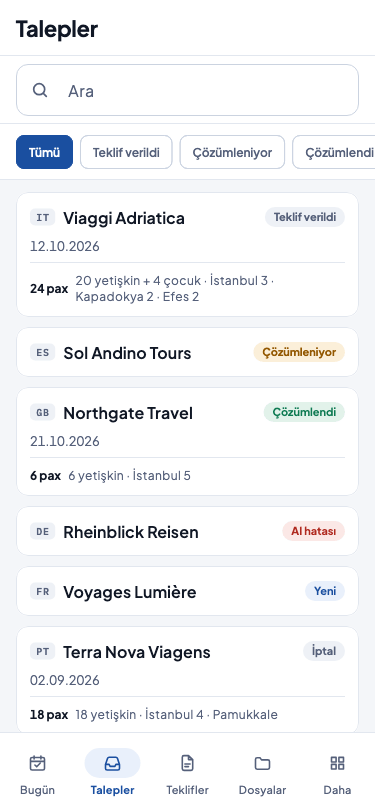
- Filtering by status — with the chips at the top of the list you separate the requests by their status; «Tümü» (all) shows all requests. The chips are made from the request statuses present in the list.
- Searching — the «Ara» (search) box searches in the agency’s name; the result comes when you stop typing. The box appears if the «Müşteriler» (customers) module is switched on. If no request matches, it reads «Sonuç yok» (no results).
- If there are no requests at all, it reads «Talep yok» (no requests): «Acenteden gelen yeni istek olduğunda burada görünür.» (When there is a new request from an agency, it appears here.)
A new request
If your installation supports it, the «Yeni Talep» (new request) button is above the «Talepler» list. When you press the button, the «Yeni Talep» window opens:- Paste the text of the agency’s e-mail into the «Talep metni» (request text) field as it is. Below the field it reads «E-posta metnini olduğu gibi yapıştırın. Kaydettiğinizde çözümleme otomatik başlar.» (Paste the e-mail text as it is. When you save, the analysis starts automatically.); beside it, the text’s number of characters and the limit of 50,000 characters appear.
- Press the «Talep Oluştur» (create request) button, or cancel with «Vazgeç» (cancel). While the field is empty or holds only spaces, the button cannot be pressed.
The request’s page
When you tap a request, the request’s page opens. While the page is loading, the heading reads «Talep» (request); then the agency’s name comes into the heading. Below the heading is the date the request came in, and on its right its status. If your installation supports it, from this page you try the analysis again, change the request’s fields on a separate page with «Düzenle» (edit), have a question draft prepared for the missing information and cancel the request (below).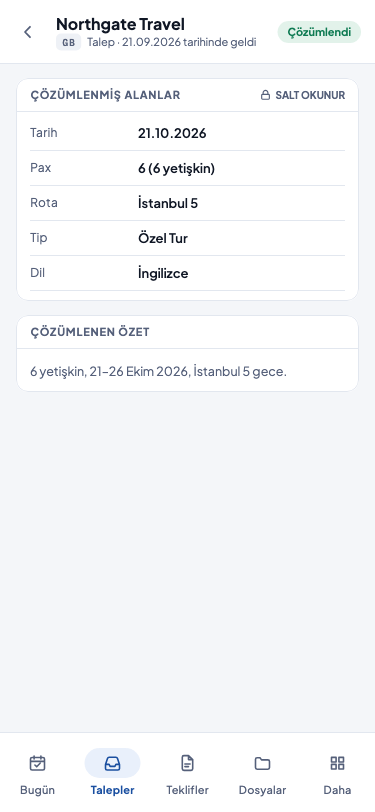
- «Eksik Bilgiler» (missing information) — the information missing from the request, if any, in the warning colour; as on the panel, «Çocuk yaşları» (children’s ages) and «Dönüş havalimanı» (return airport) can appear here too.
- «Çözümlenmiş alanlar» (analysed fields) — if the «Düzenle» (edit) button is not there, «SALT OKUNUR» (READ-ONLY) is written next to it; if the button is there, the label does not appear and you change the fields on the page the button opens (below). «Tarih» (date), «Pax», «Rota» (route), «Tip» (type) and «Dil» (language) always appear; «Genç» (youth), «Çocuk yaşları» (children’s ages), «Otel kategorisi» (hotel category), «Pansiyon» (board), «Oda dağılımı» (room breakdown), «Uçuş notu» (flight note) and «Özel istekler» (special requests) appear if they are filled in. The request’s return airport and arrival time are not shown on this card; you see them on the «Düzenle» page if your installation supports it, otherwise on the firm panel.
- «Çözümlenen özet» (analysed summary) — a short summary of the request.
- «Talep metni» (request text) — the full text the agency sent. The card starts collapsed; to open it, tap the arrow in its heading. You can select the text; the app has no copy button.
- «Gün Kartları» (day cards) — the request’s day-by-day programme, as in the panel; «SALT OKUNUR» is written next to it. This card appears if the «Konfigüratör» (configurator) module is switched on. The note below it: «Teklif metni şimdilik gün kartlarını izlemez; aktiviteler teklife aktarılmaz.» (For now the offer text does not follow the day cards; activities are not carried over into the offer.) On a day with no activity added, it reads «Bu güne aktivite eklenmedi.» (No activity has been added to this day.); activities not placed on a day are gathered under the «Yerleşmemiş aktiviteler» (unplaced activities) heading.
The analysis
While the request is being analysed, the panel’s «Çözümleniyor…» (being analysed…) card stands at the top of the page: «Talep AI ile çözümleniyor. Bu sayfada bekleyebilir veya başka bir işe geçebilirsiniz — bittiğinde bildirim alacaksınız.» (The request is being analysed with AI. You can wait on this page or move on to other work — you will get a notification when it is done.) As long as the page stays open, the app reads the request again every five seconds and shows the fields once the analysis is done. If the analysis is still running after ten minutes, the card reads «Hâlâ çözümleniyor — yenilemek için aşağı çekin.» (Still being analysed — pull down to refresh.); you refresh by pulling the page down. When the analysis is done, the notification «Talep çözümlendi» (request analysed) or «Talep çözümlenemedi» (request could not be analysed) arrives on the «Bildirimler» (notifications) screen. As on the panel, AI reads the request. The analysis is done in your firm’s Tourante installation, by the panel’s rules and within its limits; the phone adds no limit to them. If the AI account’s usage limit or balance is used up, the request falls to «AI hatası» (AI error) status and the «Talep çözümlenemedi» notification gives the reason. If the analysis could not be done, the request’s status becomes «AI hatası» and the panel’s warning appears at the top of the page: «AI şu an erişilemiyor, alanları elle doldurabilirsiniz.» (AI cannot be reached right now; you can fill in the fields by hand.) Below it reads «Ayrıntı için bildirimlere bakın.» (See the notifications for details.) If your installation supports it, the «Tekrar Dene» (try again) button below the warning starts the analysis again: the notification «Çözümleme yeniden başlatıldı» (analysis restarted) appears and the page shows the «Çözümleniyor…» card again. To fill in the fields by hand, use the «Düzenle» page (below); when you save, the request becomes «Çözümlendi» (analysed). If, in place of the «Tekrar Dene» button, it reads «Çözümlemeyi bu cihazdan yeniden denemek için çıkış yapıp yeniden giriş yapın.» (To try the analysis again from this device, sign out and sign in again.), sign out and sign in again.Editing the request
If your installation supports it, the «Düzenle» button is below the analysed fields. As on the panel, the button appears whatever the request’s status is as long as the request is not being analysed, on a cancelled request too. When you press it, the request’s fields open on a separate page; if the request is being analysed at that moment, the page shows the «Çözümleniyor…» card in place of the fields. As on the panel, both a «Yönetici» and an «Operasyon elemanı» can edit the request. At the top of the page, if there is any, stands the «Eksik Bilgiler» (missing information) card. The «Talep bilgileri» (request details) card holds the fields of the panel’s form in the panel’s order: «Acente» (agency), «Dil» (language), «Tip» (type), «Başlangıç tarihi» (start date), «Şehirler ve geceler» (cities and nights), «Yetişkin» (adults), «Genç» (youth), «Çocuk» (children), «Çocuk yaşları» (children’s ages), «Otel kategorisi» (hotel category), «Pansiyon» (board), «Oda dağılımı» (room breakdown), «Uçuş notu» (flight note), «Dönüş havalimanı» (return airport), «Varış saati» (arrival time) and «Özel istekler» (special requests). Next to the fields the «Eksik Bilgiler» card lists, it reads «Eksik» (missing).- «Acente» — appears only if the «Müşteriler» (customers) module is switched on. If AI matched the agency, below the field it reads «AI eşleştirmesi — kontrol edin.» (AI match — check it.) When you tap the field, the agency picker opens (below).
- «Şehirler ve geceler» and «Özel istekler» — each row is a city and a number of nights («Şehir» (city), «Gece» (nights)) or a request («İstek» (request)). «Şehir ekle» (add city) and «İstek ekle» (add request) open a new row; the icon next to a row removes the row.
- «Çocuk yaşları» — each age appears as a separate chip; you add a new age by typing it into the field and tapping the plus icon next to it (or the keyboard’s confirm key), and remove one with the icon on its chip; an age you typed but did not add is not saved.
- «Varış saati» — «İlk günün varış saati; gün kartları geç varışı uyarır.» (The first day’s arrival time; the day cards warn of a late arrival.)
Choosing an agency
When you tap the «Acente» field, the «Acente seç» (choose agency) window opens. The «Ara» (search) box searches in the agency’s name; the list shows each agency’s name and country. When you tap an agency, the field is filled; «Acenteyi kaldır» (remove agency) empties the field. The agency you chose is saved when you press the «Kaydet» button. If your user role is «Yönetici», you can add an agency that is not in the list from here: press the «Yeni acente oluştur» (create new agency) button in the window, enter the «Acente adı» (agency name) and, if you like, the «Ülke» (country), and press the «Oluştur» (create) button. The agency is created at once and written into the field; it is linked to the request when you press the «Kaydet» button. On the phone only the agency’s name and country are entered; you set the agency’s segment on the firm panel, on the agency’s card (Customers and agencies). On the panel an «Operasyon elemanı» can also create a new agency from the request form; on the phone, by Tourante’s decision, only a «Yönetici» sees this button. On the phone an «Operasyon elemanı» picks an agency from the list or leaves the field empty.The question draft
If your installation supports it, on the page of a request that is not being analysed, the «Soru Taslağı Oluştur» (create question draft) button is below the analysed fields. If nothing is missing from the request, the button appears faded and cannot be pressed; when you press and hold it, it reads «Eksik alan yok — soru taslağına gerek kalmadı.» (No field is missing — no question draft is needed.) As on the panel, both a «Yönetici» and an «Operasyon elemanı» can have the draft prepared. When you press the button, the «Soru E-postası Taslağı» (question e-mail draft) window opens and, as on the panel, the draft is prepared in the agency’s language (the language in the request’s «Dil» field; English if the field is empty):- If there is no draft yet, it starts being prepared: the notification «Soru taslağı hazırlanıyor» (question draft being prepared) appears and the window reads «Taslak acentenin dilinde hazırlanıyor — hazır olduğunda bildirim alacaksınız.» (The draft is being prepared in the agency’s language — you will get a notification when it is ready.) As long as the window stays open, the app checks the draft every five seconds and waits for at most ten minutes; when the draft is ready, it appears in the window. If you close the window, the draft goes on being prepared; when it is ready, the notification «Soru taslağı hazır» (question draft ready) arrives, and when you press the button again, the draft opens in the window.
- If the draft is ready, the window shows the description «Taslak acentenin dilinde hazırlandı. Kopyalayıp kendi e-posta programınızdan gönderin.» (The draft was prepared in the agency’s language. Copy it and send it from your own e-mail program.), below it the draft’s text and «Bu yalnızca bir taslaktır — sistem e-posta göndermez.» (This is only a draft — the system does not send e-mail.) The app has no copy button: select the text, copy it with “Kopyala” (copy) in your phone’s own menu and send it to the agency from your own e-mail program. If you do not like the draft, ask for a new one with «Yeniden Oluştur» (create again); «Vazgeç» closes the window.
- If the draft could not be prepared, it reads «Soru taslağı hazırlanamadı. Gerekirse bildirimlere bakın.» (The question draft could not be prepared. See the notifications if needed.); you can ask again with «Yeniden Oluştur».
The request text and personal information
The e-mail text you paste contains the names of guests and of the agency’s staff, addresses and dates, sometimes a passport or phone number. The text stays only in the «Yeni Talep» window until the sending is answered; after that, the request’s page holds it in memory with the request’s other details and deletes it when you sign out. The text is not written to the phone’s storage, a log file or a crash report. Your firm’s Tourante installation stores the text and, as on the panel, sends it to the AI provider together with the names and countries of your firm’s agencies; the phone sends no file. Every user of the firm who opens the request’s page sees the text on the «Talep metni» card. What you type on the edit page stays only on that page until you save or leave it. The request’s details (and, once you have opened the «Düzenle» page, the text of the request’s question draft if one is ready) and the agencies’ names and countries in the picker are held in memory only while you are signed in and are deleted when you sign out. In the draft’s own window the draft stays only while the window is open; the app does not write to the clipboard itself and does not read it. These are not written to a log file or a crash report either.Cancelling a request
If your installation supports it, the «Talebi iptal et» (cancel request) button is at the bottom of the page of a request that has not been cancelled. When you press the button, the panel’s confirmation window opens: «Bu talebi iptal etmek istediğinize emin misiniz? İptal edilen talep listede gri görünür; teklif üretilmez.» (Are you sure you want to cancel this request? A cancelled request appears grey in the list; no offer is produced.) When you confirm with the «Talebi İptal Et» button, the «Talep iptal edildi» (request cancelled) notification appears, the request’s status becomes «İptal» (cancelled) and the button disappears. The request is not deleted; if your installation supports it, you can change the fields of the cancelled request too with «Düzenle», as on the panel. If the connection dropped, «Tekrar dene» (try again) in the notification sends the cancellation again; if the cancellation went through the first time, it is not done twice. If, in place of the button, it reads «Talebi bu cihazdan iptal etmek için çıkış yapıp yeniden giriş yapın.» (To cancel the request from this device, sign out and sign in again.), sign out and sign in again (Getting started on the phone).Offers
The «Teklifler» (offers) tab depends on the «Teklifler» module. Each card in the list shows the agency’s name, the offer’s version (for example “v2”), the agency’s country, the offer’s status and its language; offers sent to the agency also have a sending line. The cards show no amounts. If your installation supports it, the card also shows the panel’s two signals. If places in the offer text await your approval, a yellow badge says how many points await your approval (the panel’s «[KONTROL]» (check) column). If internal information was caught in the text, a red warning icon appears; when you press and hold the icon, it reads «Sızıntı uyarısı var» (there is a leak warning) (the panel’s «Sızıntı» (leak) column).- Filtering by status — with the chips above the list you separate offers by status (the panel’s «Durum» (status) filter); «Tümü» (all) shows all offers.
- Filtering by request — if your installation supports it, a second row of chips is below the status chips (the panel’s «Talep» (request) filter). Each chip shows the request’s number and the agency’s name; when you tap a chip, only that request’s offers are listed.
The offer text
When you tap an offer, the offer’s page opens. While the page is loading, the heading reads «Teklif metni» (offer text); then the agency’s name comes into the heading. Below the heading are the offer’s language and version, and on its right its status. The page shows the offer’s text, together with the country and the creation time. If the text has not been produced yet, it reads «Metin henüz üretilmedi.» (The text has not been produced yet.)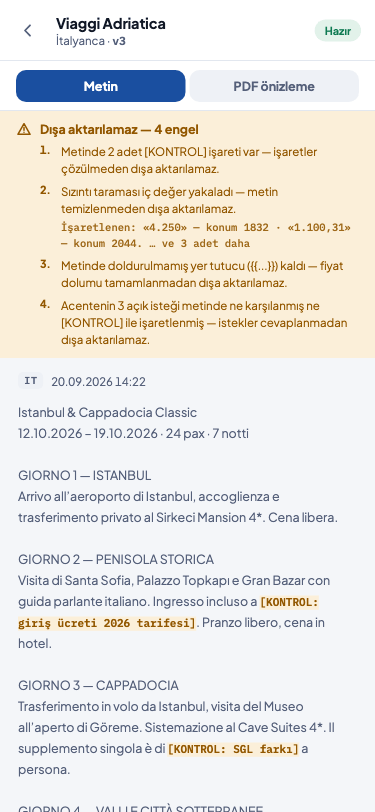
- Offer not sent — if the offer cannot be exported, a yellow warning appears above the text. The warning’s heading shows “Dışa aktarılamaz” (cannot be exported) and the number of obstacles, and below it each obstacle’s explanation is written, numbered. The places marked in the offer text are shown, with their positions, on the «İşaretlenen:» (marked:) line. The warning has no button on the phone: you remove the obstacles by correcting the offer in the panel.
- Offer sent — instead of the warning, the sending line and the «İndir» (download) button are at the bottom of the page.
Sending to the agency and opening a file
If your installation supports it, the offer’s page has a row of buttons below the warning and above the text. As in the panel, the buttons appear according to the offer’s state (below). While the offer cannot be exported, «Acenteye Gönder» (send to the agency), «Gönderildi olarak İşaretle» (mark as sent) and «Dosya Aç» (open file) look faded and cannot be pressed; the warning above lists the obstacles.- «Acenteye Gönder» — appears if the «Teklifler» module is switched on and the offer’s version is ready and has not been sent yet. It opens the «Teklifi acenteye gönder» (send the offer to the agency) window. The window shows the panel’s description: the address the offer PDF will be sent to, and that once the sending succeeds the version is stamped “gönderildi” (sent) and the text is locked. If an earlier sending of this version could not be verified, the description also says that the e-mail may reach the agency a second time. The «Alıcı e-posta» (recipient e-mail) field comes filled in with the agency’s registered address; you see the address in full and can change it if needed. If the agency has no registered address, the field comes empty; type the address you want to send to. When you press the «Gönder» (send) button, the e-mail is queued and the panel’s notification appears; «Vazgeç» (cancel) closes the window. The e-mail goes only to the address you typed.
- «Gönderildi olarak İşaretle» — if you sent the offer outside Tourante, it stamps the version by hand; it appears on the same offer as «Acenteye Gönder». The panel’s question opens: «Bu sürümü acenteye gönderdiğinizi onaylıyor musunuz? İşaretlendikten sonra metin düzenlenemez; değişiklik gerekirse “Revize Et” yeni bir sürüm açar.» (Do you confirm that you have sent this version to the agency? Once it is marked, the text cannot be edited; if a change is needed, “Revize Et” (revise) opens a new version.) When you confirm, the page shows the offer’s current state; the offer now appears as sent.
- «Dosya Aç» — appears if the «Operasyonlar» (operations) module is switched on, the offer’s version is ready and no file has been opened for the request yet. It opens the «Operasyon Dosyası Aç» (open operation file) window (below).
- «Dosyaya Git» (go to the file) — appears if the «Operasyonlar» module is switched on and a file has been opened for the request; it opens the file’s page.
Opening an operation file
The «Operasyon Dosyası Aç» window carries the choices of the panel’s window; the phone shows no rate, percentage or amount. Tourante locks the rate at the moment the file is opened; it also writes the sales amount itself (on a group tour, from the approved sales price of the tier you choose).- At the top of the window, the panel’s rate warnings appear, if there are any: «Kur farkı uyarısı» (rate difference warning) if the offer’s rate and the rate to be locked differ by more than one per cent, and, if the rate is not current, which day’s TCMB rate was used. Neither warning blocks opening the file.
- The flight note of the request is shown in the window; if there is no note, it reads «Uçuş notu yok» (no flight note).
- Choose who the «Dış hat» (international flight) tickets are from: «Uçuş notuna göre seçin; dosya rozetine yazılır.» (Choose according to the flight note; it is written on the file’s badge.) With the «İç hat» (domestic flight) switch, say whether there is a domestic flight; if the quotation has a domestic flight line, «İç hat» comes switched on.
- On a group tour, choose the confirmed tier under «Pax kademesi» (pax tier): «Kesinleşen kademeyi seçin; o kademenin onaylı satış fiyatı dosyaya yazılır.» (Choose the confirmed tier; that tier’s approved sales price is written to the file.) Each choice shows the tier’s name and its multiplier; it shows no price. The file is not opened without a tier.
- At the end of the window, who the file’s assignee will be is written: the agency’s default representative; the assignment waits for the manager’s approval. If the agency has no default representative, the line appears as a warning: «Bu müşterinin varsayılan temsilcisi yok — dosya atanmamış açılacak ve yönetici panelinde uyarı görünecek.» (This customer has no default representative — the file will be opened unassigned and a warning will appear on the manager’s panel.)
- Press the «Dosyayı Aç ve Kuru Kilitle» (open the file and lock the rate) button.
PDF preview and sharing
If the offer’s version is ready and your installation supports it, the «Metin» (text) and «PDF önizleme» (PDF preview) tabs appear at the top of the page.- «PDF önizleme» — shows the offer’s PDF page by page. At the top, the file’s name, number of pages and size are written. You can zoom with two fingers, and change pages with the «Önceki sayfa» (previous page) and «Sonraki sayfa» (next page) buttons or by scrolling. The «Metin» tab goes back to the text.
- «PDF indir» (download PDF) — the download icon at the top right; it appears if the offer can be exported. It opens the PDF with your phone’s share menu: you can send it by e-mail or message, or save it to your files. While the PDF is being prepared, it reads «Teklif PDF’i hazırlanıyor…» (preparing the offer PDF…). On an offer that has been sent, the «İndir» button at the bottom of the page does the same job.